

Key takeaways:
- Dwell measures how long a trailer has sat since arrival, while aging ranks that figure across every asset so the equipment closest to a detention charge rises to the top.
- Snapshot-only systems hide idle trailers because they cannot show how long a clock has run, whereas a full transaction history with timestamped moves reflects the yard as it stands.
- YardView captures automated arrival, dock arrival, and departure timestamps that feed a real-time dwell calculation, and its audit trail lets finance dispute detention charges against documented evidence.
An aging report ranks every trailer in your yard by how long it has sat, so the equipment closest to a detention charge rises to the top of a list you read each morning. A dwell report gives you the raw clock on a single asset. Put together, they tell your team which trailer to move first, before the meter runs.
That timing is the whole point. Detention runs $30 to $50 an hour, and demurrage climbs to $300 a day. Many yards find out a trailer crossed one of those lines only when a carrier invoice lands, or when a jockey walks the lot and eyeballs it. By then the charge is already accruing.
This guide walks through the necessary steps to turn raw gate and move data into aging and dwell reports that surface idle trailers, so your team moves the costliest one first, before detention or lost capacity sets in.
1. Get Your Gate Data Feeding a Live Dwell Record
Aging reports fail for one reason above all others: thin timestamps underneath. Before you build a single view, confirm the yard is capturing the events dwell math depends on.
Dwell is the elapsed time between when a trailer showed up and when it left, measured against the moves in between. A capable YMS captures automated timestamps for arrival, dock arrival, and departure on every visit, so the clock starts the moment a trailer hits the gate and keeps running through each move.
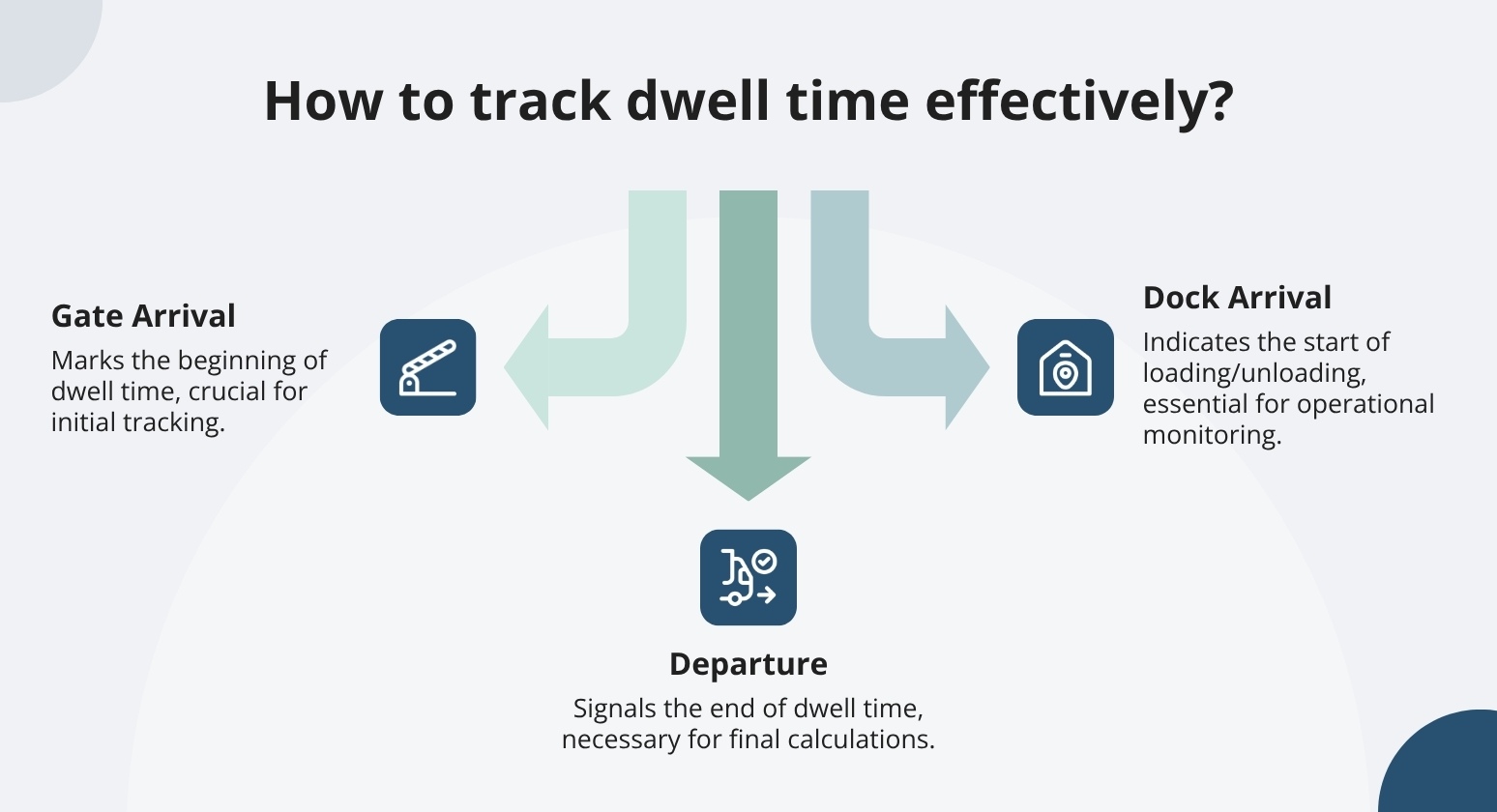
Those three timestamps feed a real-time dwell calculation you can rank against.
However, a dwell number on its own does not tell a spotter what to do. A useful aging report ties each trailer to the fields that make it sortable and assignable:
- Trailer ID, the specific asset, so a move request points to the right unit rather than a general area
- Load status, loaded, empty, or partial, so you know whether you are protecting freight or clearing an empty that is eating a spot
- Carrier code (SCAC), who owns the equipment and the detention clock, which is who you route the report to
- Location, yard spot, dock door, or waiting zone, so a spotter finds it without a second walk
- Dwell time, hours on the ground, the field you rank everything else against
YardView shows these same points on the live yard map as color-coded assets, so the report and the map read the same story.
2. Choose the Report Template and Set Your Idle Thresholds
With the data source clean, the next call is which report gives the fastest read on idle equipment. That depends on the problem you are chasing, so start by matching the template to the pattern:
Pick the one that matches what you are seeing, then set the cutoff that defines idle.
An aging report earns its keep only when it separates normal dwell from trouble. Set a cutoff in hours that reflects your operation and flag anything past it. Color-coded views push the longest-dwelling assets to the top, so the trailers that have sat 24, 48, or 72 hours surface first instead of hiding in a flat list.
That ranking is what makes a daily scan practical instead of a full-yard read every morning. The tradeoff is real: set the cutoff too low, and the report cries wolf until your team stops reading it. Tune it to your own free days, not a round number.
3. Schedule Reports and Confirm Against the Live Yard
Knowing which trailers to move is only useful if the report reaches the right people without anyone pulling it by hand. This step sets the delivery, confirms the output against the live yard, and backs every dwell figure with a timestamped record.
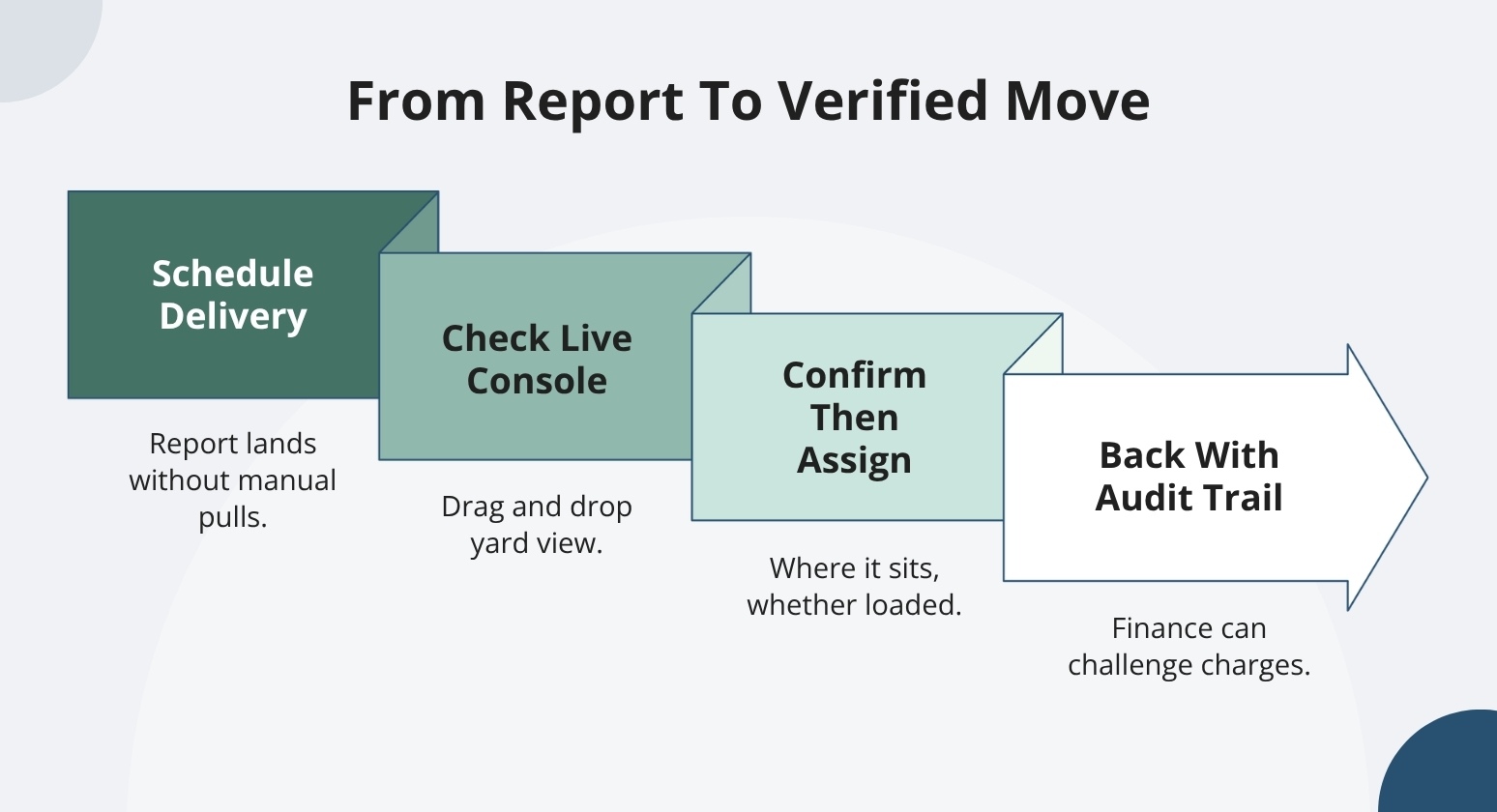
Before you assign moves off a report, check what you are reading against the live drag-and-drop console. Assets should show as color-coded rectangles carrying load status, cargo direction, carrier code, trailer ID, location, and dwell time across all docks, yard spots, and waiting zones.
If a report flags a trailer past its threshold, the console shows exactly where it sits and whether it is loaded. That check keeps a spotter from chasing a move on data that has already moved on.
When a carrier invoice for detention does not match your records, the audit trail settles it. YardView stores every transaction with automated timestamps for arrival, dock arrival, and departure so that finance can validate and challenge charges against documented evidence.
Transparent records of every move end the finger-pointing between teams over which trailer stalled and why. Worked this way, aging and dwell reporting becomes a daily routine that surfaces idle trailers before they cross the detention line.
Turn Idle Trailer Data into Faster Yard Decisions
Aging and dwell reports only matter if the numbers reach you before detention fees pile up and leased trailers sit forgotten in the back rows. YardView pairs real-time dwell tracking with a reporting suite built to surface those idle assets early, so the trailers draining your budget become the first ones you act on:
- Facility and Dwell Reporting: Pull facility dwell, dock door dwell, and yard snapshot reports that pinpoint how long each trailer has sat, down to the location.
- Detention and Demurrage Tracking: Monitor real-time dwell with threshold-based alerts that fire before fees accrue, backed by audit trails for disputes and billing reconciliation.
- Color-Coded Yard Visibility: See up to 20 data points per asset on a live drag-and-drop map, color-coded by load status, carrier, location, and dwell time.
- Scheduled Report Delivery: Set inventory, dwell, and driver-move reports to arrive automatically by email, with dashboards and enterprise/network views for multi-site operations.
- Move and Driver Metrics: Track idle time, mis-spotted moves, and total moves by building, area, product, or driver to connect dwell trends to the actions that clear them.
See how YardView surfaces the idle trailers hiding in your yard, ranking dwell in real time so the costliest one is the first move of the day.
Frequently Asked Questions
What's the Difference Between a Dwell Report and an Aging Report?
Dwell measures elapsed time for a single visit, from arrival through dock arrival and departure. An aging report ranks equipment by how long it has sat, so the trailers closest to a detention threshold rise to the top. You often read them together, with dwell giving the clock on each trailer and aging naming which ones to move first. YardView's Basic Analytics covers facility dwell and dock/trailer turn-time, so you get both the raw duration and the ranked view your team acts on each morning.
How Often Should Aging and Dwell Reports Be Reviewed?
Review them at the start of every shift and let alerts cover the hours between. A daily read on the ranked aging list tells your team which trailers to prioritize before dwell crosses a fee threshold. YardView supports scheduled email delivery on an hourly, daily, weekly, or monthly cadence, so the report lands in the right inbox without anyone having to pull it. For yards with heavy carrier turnover, an hourly refresh on the approaching items keeps fast-accruing trailers from slipping past.
What Data Fields Are Essential for Tracking Idle Trailers Accurately?
Start with three timestamps: gate arrival, dock arrival, and departure. Those anchor every dwell calculation. Add carrier code, trailer ID, location, and load status, and you can rank aging equipment and slice it by whoever owns the delay. YardView shows assets as color-coded rectangles carrying load status, direction, carrier code, trailer ID, location, and dwell time, so the same fields that drive the live yard map also feed the reports.
Do I Need WMS or TMS Integration to Build Useful Aging and Dwell Reports?
No. Gate and move events captured inside the yard management system are enough to produce accurate dwell and aging reports on their own. Integration adds context, such as order or shipment detail from a WMS or TMS, which helps you tie idle trailers back to a customer or load. YardView connects to WMS, TMS, and other systems during Phase 2 with custom reporting and business logic, so you start with yard data and layer in outside systems as your reporting needs grow.
Can Aging and Dwell Reports Reduce Detention and Demurrage Fees?
Yes, when your team acts on them before the clock runs out. Detention runs $30 to $50 per hour, and demurrage climbs to $300 per day, so moving a flagged trailer even an hour earlier protects real money. YardView customers report a reduction in detention and demurrage fees compared to their previous carrier invoices. The needs attention, and approaching reports do the heavy lifting, surfacing at-risk trailers early so the yard reacts before the fee accrues.