Key takeaways:
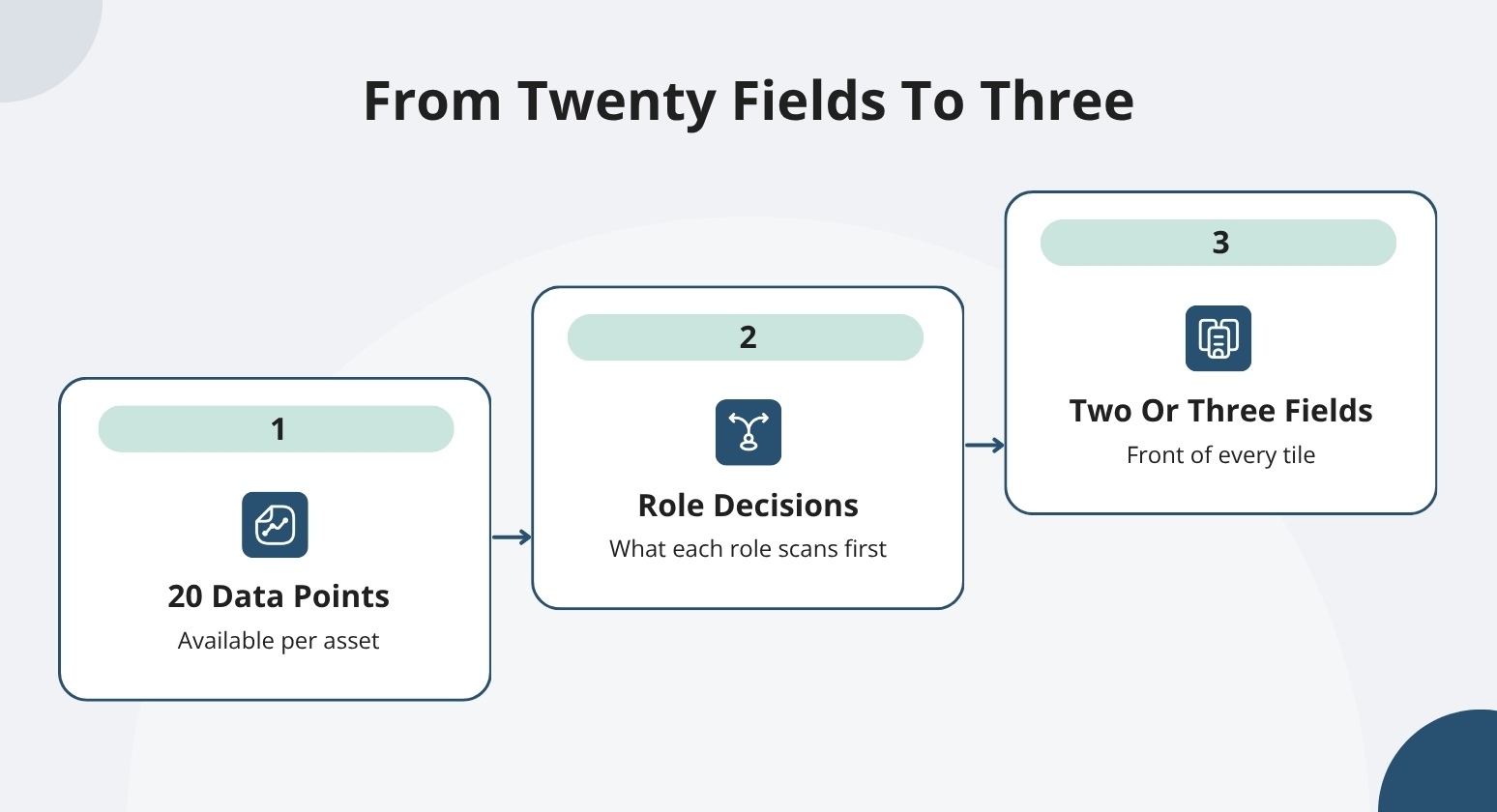
- A yard board can display up to 20 data points per asset, but a tile only reads at a glance, surfacing the two or three fields that answer what a trailer is and whether it needs to move.
- A sound default tile anchors trailer ID, carrier code, load status, cargo direction, and dwell time, while SKU detail, seal data, and appointment references stay one click away off the face.
- A yard board earns adoption when design starts from the decisions each role makes, so fixing fields per role, locking one legend across sites, and keeping interaction to one or two clicks decides whether the scan replaces the walk.
Picture two yards running the same yard board software and reading differently. On one, a glance tells the manager what's late, what's loaded, and which doors are free. On the other, the board is a wall of tiles nobody trusts, so the team walks the lot anyway. The difference comes down to what each tile shows and how the colors and door icons are set up.
This article covers what belongs on a trailer tile, how door-status icons and color coding make the board readable at a glance, and how to design a board your team will actually use.
What Is a Yard Board?
A yard board is a graphical, drag-and-drop console that renders your entire yard as color-coded tiles. It shows up to 20 data points per asset so you can read load status, location, and dwell without opening a record.
Three parts make it work, and each one is a design choice.
The Console as a Real-time Map Across Docks, Spots, and Lanes
The board maps the operation as it stands right now. Real-time visibility spans every dock, yard spot, in-transit lane, and waiting zone, with current inventory counts, inbound and outbound volumes, and open space shown across the site.
If you read it at 6 a.m., you see where trailers sit, which doors are working, and where space is running short. That picture becomes the plan. It keeps updating as spotters complete moves, so it never freezes at the last time someone walked the lot.
Tiles, Fields, and Icons
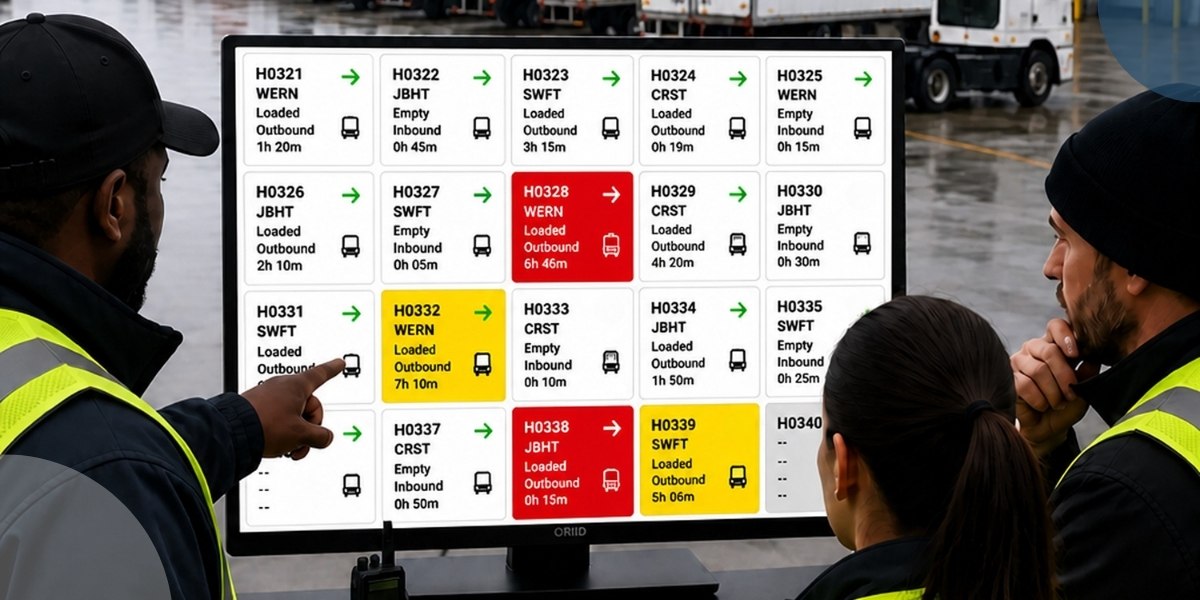
Each asset shows up as a color-coded rectangle. In the right console, that tile can carry load status, cargo direction, carrier code, trailer ID, location, and dwell time. Color signals status before you read a character.
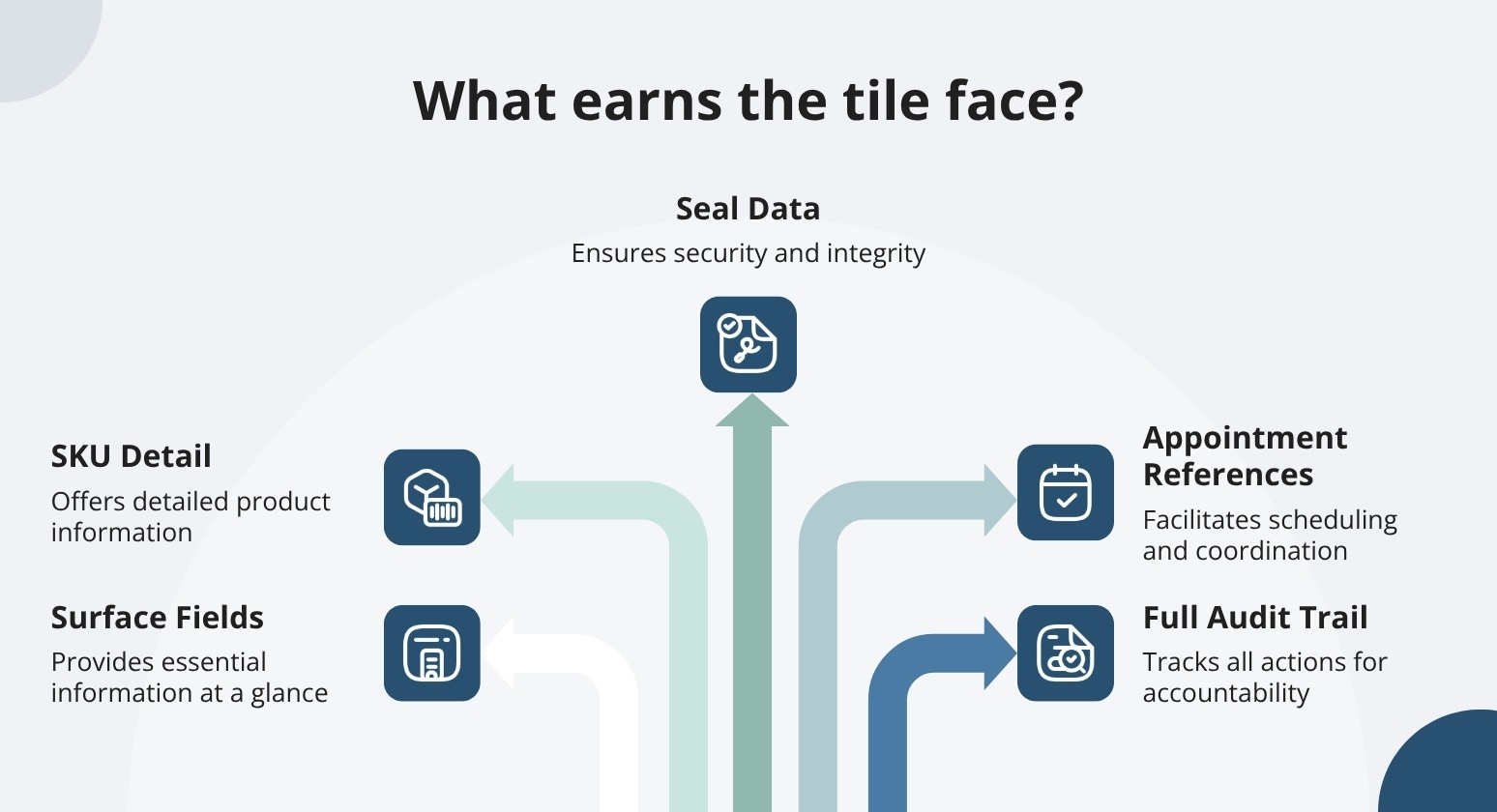
The fields on the face answer the questions a spotter asks before touching a trailer. Icons flag door occupancy and exceptions. These three are the building blocks, and picking which of the 20 available data points earn a place on the tile is where board design lives or dies.
Live Visual System
A live board saves the walk. Unlike systems that provide only snapshot data, the right yard board stores every transaction with a full audit trail of what happened, when, and who did it. The tile you read reflects the last completed move.
That live state is what separates a board from a whiteboard. A whiteboard shows what someone wrote an hour ago; a live board shows the move a spotter finished a minute ago, so the plan you build off it matches the yard in front of you.
How Door-Status Icons and Color Coding Make the Yard Board Readable at a Glance
Fields tell you what a trailer is, while color and icons signal what to do about it before a spotter reads a single number. A well-built board carries the same load status, dwell, and carrier detail across every tile, so the shape of the day reads before you click anything.
Color and Icon States for Occupied, Open, Waiting, and Exception Doors
A door has a trailer against it, or it is open, and the board should say which without a second look. Work from a small, fixed set of states that map to what a spotter decides: occupied, open, waiting for a trailer, and exception.
Assign each one a distinct color and hold it constant across the board, so a color means the same thing whether it sits on a dock icon or a yard tile.
Exceptions get the loudest treatment. A door where a trailer has overstayed its window, a reefer running warm, or a spot flagged during a lot check should pull the eye first. The same palette that colors a live yard tile can drive the door legend, so each color has one standard meaning, with no relearning between screens.
Extending Board Logic to the Dock Floor with Large-Format Monitors
The office reads the board on a screen. The dock floor needs the same read without walking back to a desk. Large-format monitors inside warehouses display door occupancy, dwell time, status, and customized detail for dock personnel in real time, so a loader can look up and see which doors are working, which are open, and which have a trailer sitting too long.
Keep the floor view lighter than the manager's console. Dock personnel need occupancy and dwell at a glance. Pare the monitor to the states that drive their next action and let the color carry priority.
When the office board and the dock monitor share one legend, a status change reads the same in both places, and nobody argues about which door is free.
Signaling What Moves Next (Priority Order and Next-Best-Move Indicators)
Readable status answers what is happening, and a working board also answers what moves next. The right yard board should surface move requests in priority order, then by request time, so the most urgent work sits at the top instead of buried in a queue. The board becomes a triage tool as soon as priority is visible.
Automated next-best-move recommendations sharpen that further, weighing backend mapping, proximity, urgency, and request age to suggest the move that keeps freight flowing. A driver can skip a suggestion but must pick a reason from a set list, so the board keeps an honest record of what happened and why.
How to Design a Yard Board Your Team Will Use
A board earns adoption when the design starts from the decisions each role makes. Start by asking what a spotter scans first, what a dock lead scans first, and what you scan first as the manager. Those answers point to the two or three fields that belong on the front of every tile. Everything else stays on the record and off the face.
A few practices keep the board readable once it goes live:
- Fix the fields per role: Let a spotter see trailer ID, load status, and dwell; give dock staff door occupancy and status. Custom actions and role-based access give each area its own view without clutter.
- Lock the legend: Pick one color and icon meaning per state and hold it across the site. Occupied, open, waiting, and exception read the same on the yard map and the dock dashboard.
- Keep interaction to one or two clicks: The interface runs on 1-2 click task completion, so reading a tile and issuing a move stay fast under pressure.
For a manager running several sites, one shared field-and-icon standard means a spotter who moves between yards reads each board the same way.
Turn Your Yard Board into a Live Command Center with YardView
A well-designed yard board only delivers value if the tiles, fields, and door-status icons reflect what is happening in the yard right now. YardView gives teams a graphical, real-time console where every trailer tile shows the exact data points, load-status colors, and dock activity that keep decisions accurate and fast.
- Drag-and-Drop Yard Console: Displays up to 20 data points per asset on color-coded rectangles that reflect load status, cargo direction, carrier code, trailer ID, location, and dwell time at a glance.
- Real-Time Dock Visibility: Spans all docks, yard spots, in-transit lanes, and waiting zones with live inventory counts, inbound and outbound volumes, and open space availability.
- Color-Coded Scheduling Views: Day and week calendar views with color-coded status indicators tie dock appointments directly to the board's live activity.
- Next-Best-Move Guidance: Automated recommendations based on backend mapping, proximity, urgency, and request age keep the board's tiles moving in the right order.
- Rapid Yard Audits: Lot check from the in-cab device lets drivers verify locations, flag missing assets to a virtual "lost" location, and update status so the board stays trustworthy.
See how YardView's live yard console turns tiles, colors, and door icons into a board your team reads at a glance.
FAQs:
How do door-status icons differ from the fields on a trailer tile?
Trailer tiles describe the asset, and door-status icons describe the dock. A tile tells you what a trailer holds and how long it has sat, while a door icon tells you whether a dock is occupied, open, or waiting. YardView pairs the two so the board reads as one picture of the yard and the dock face together, and neither view forces you to interpret the other by hand.
Can a yard board be configured for unmanned or kiosk-free operations?
Yes. The platform accommodates gate or no gate, kiosk or no kiosk, and manned or unmanned operations, with custom actions, workflows, and fields tailored to each site. The board stays the same decision tool whether drivers check in at a manned booth or on their own device, so the way you read tiles and door status does not change with the gate setup.
Does the yard board show historical data or only the current state?
The board shows the live state, and the platform keeps the record behind it. Unlike systems that only provide snapshot data, YardView stores every transaction with a full audit trail covering what happened, when, and who did it. It also tracks all post-arrival movement down to SKU-level detail. So the tile you scan this morning reflects the current state, and the history stays available when you need to check dwell or settle a question about a move.